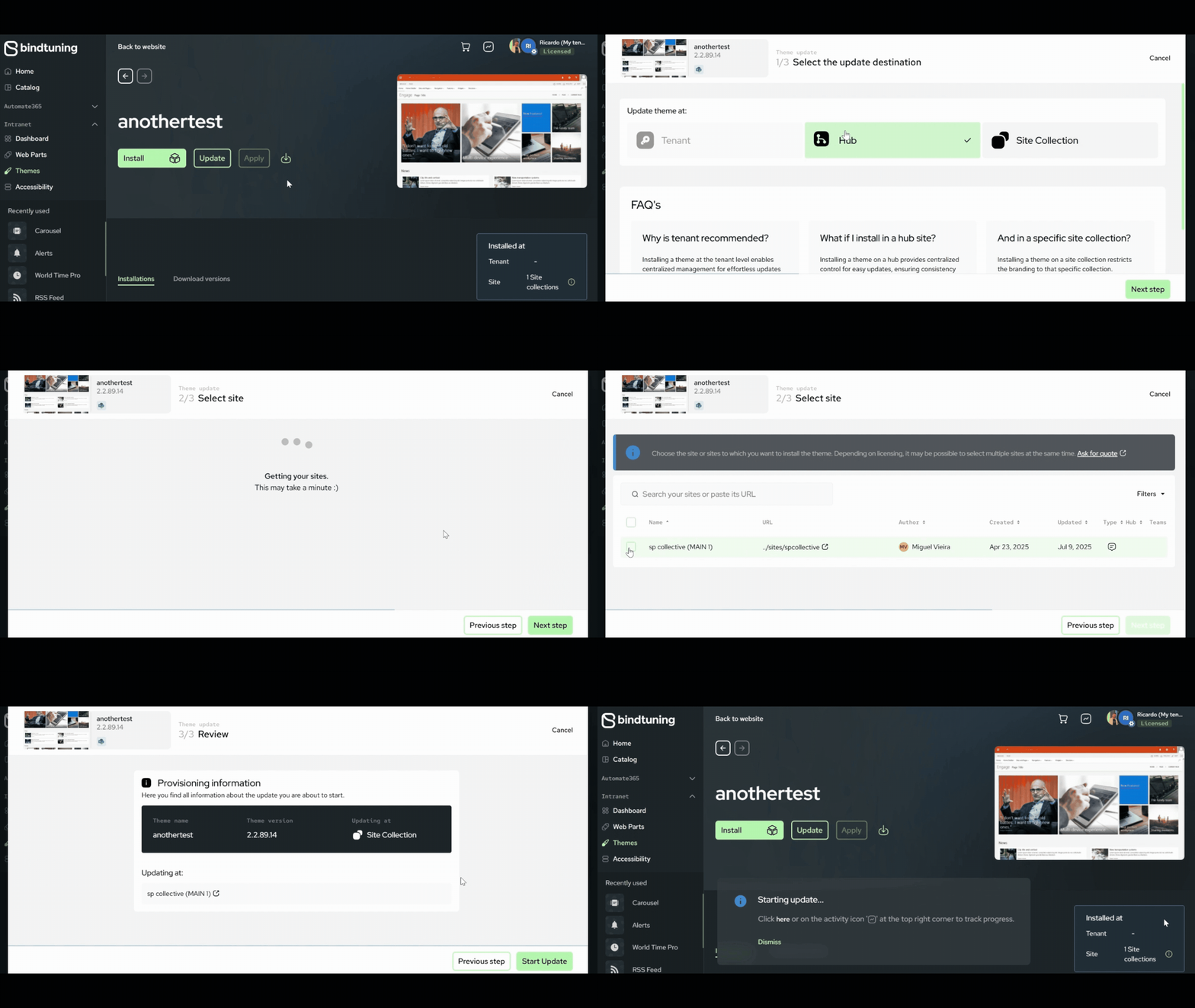
Update
- Login to BindTuning;
- On the left sidebar, click on Intranet > Themes;
- If you created the theme, click on “Created by me”;
- If the theme is a shared with you by a product owner, click on "Shared with me." (The product owner must enable "shared assets" in their Workspace Settings > Members for you to see it.)
Note: To learn how to customize a theme, please refer to Customize a theme.
-
Check the yellow bar for "Update Available", and select the theme;
-
Choose the update scope:
-
Tenant App Catalog – Theme is available to be applied across all site collections on the SharePoint environment, offering broad accessibility - Click on Next Step > Start Installation;
-
Hub - Theme availability is restricted to hub site and their associated sites - Click on Next Step > Start Installation;
-
Site Collection App Catalog – Theme availability is restricted only to that specific site collection, providing more localized control - Choose the site collection where the web part should be installed and click on Next Step > Start Installation;
-
Check the update process by clicking on the Activity Report button – a notification will show up when it’s finished.