Installation
- Login to BindTuning;
- On the left sidebar, click on Intranet > Themes;
- If you created the theme, click on “Created by me”;
-
If the theme is a shared with you by a product owner, click on "Shared with me." (The product owner must enable "shared assets" in their Workspace Settings > Members for you to see it.)
Note: To learn how to customize a theme, please refer to Customize a theme.
-
Select the desired theme and download the package;
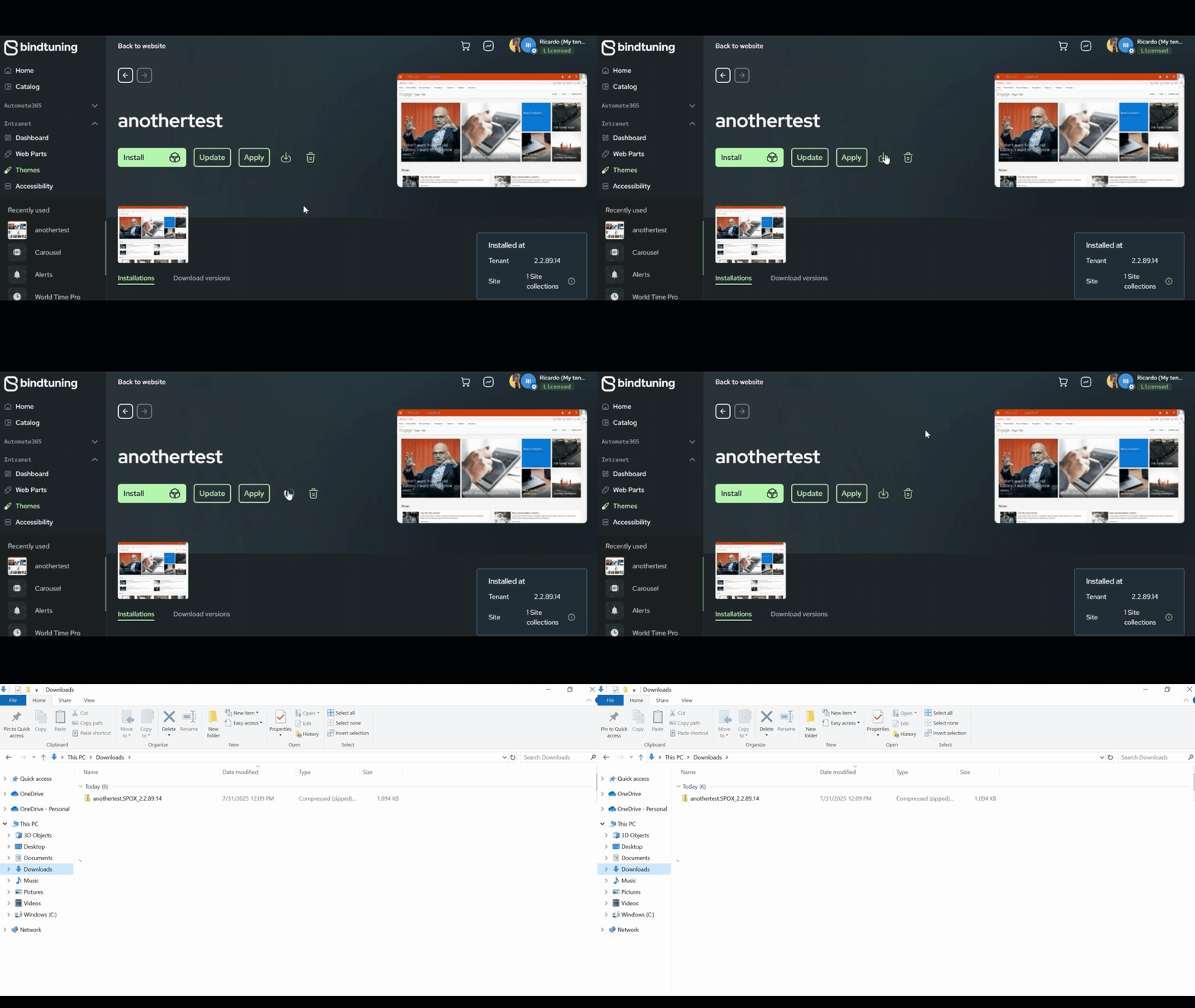
- Extract the files and run the PowerShell script.
- Select Yes (Y) or Yes to All (A) to allow the installation to run. When prompted to select the authentication type, choose Interactive (1).
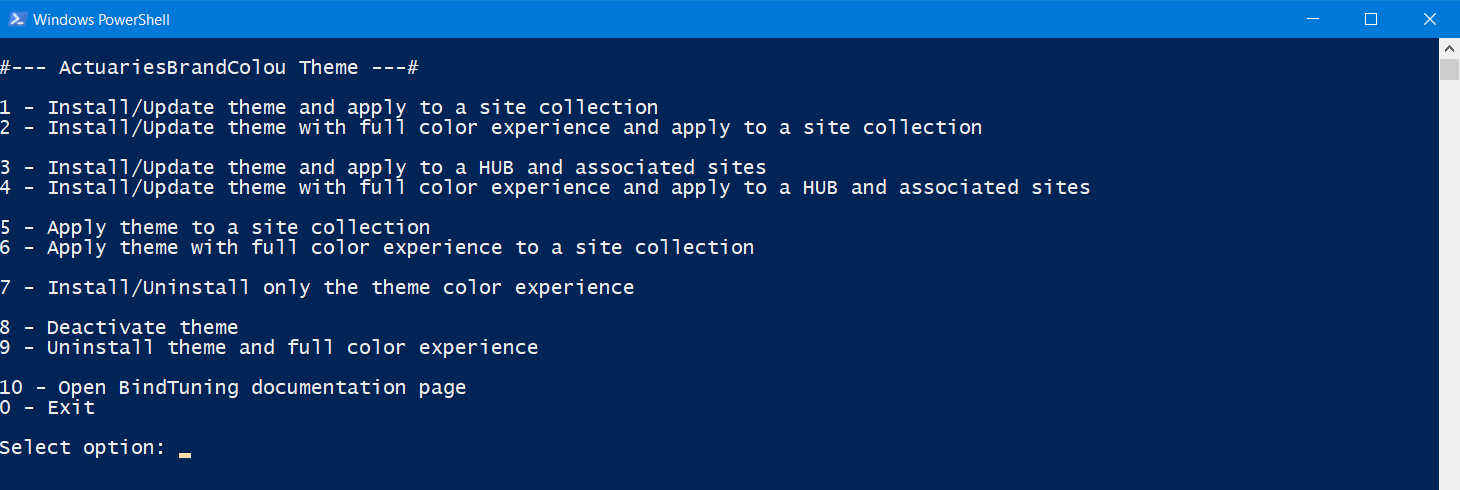
- Select the appropriate option according to your use case:
- Install/Update the theme options: Applying full color experience will allow you to use the ‘Change the look’ option – available if you have SharePoint admin permissions.
- Install/Update to HUB and associated sites: Allows you to install manually on hubs.
- Apply theme: Allows you to apply a theme on a site collection when it is already installed on the tenant app catalog.
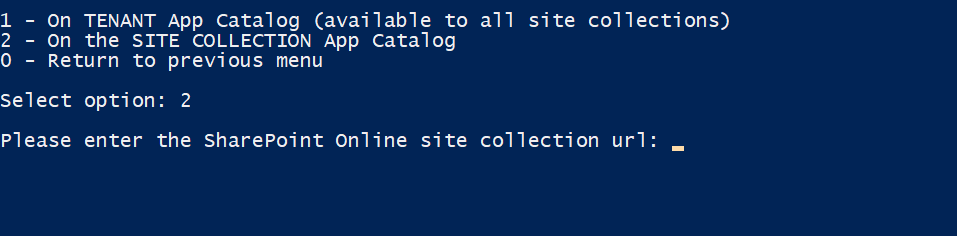
- Select option to install on tenant app catalog or site collection app catalog and add the link for the site collection:
- Log in with your credentials and finish the installation.